
What OCR Accuracy Actually Means for Your Bookkeeping
Understanding how OCR systems measure accuracy and why 95% recognition rates still require review processes.
Step-by-step walkthrough of integrating OCR software into your existing accounting workflow. No coding required. Takes about an hour to get running.

Author
Written by the InvoiceVision editorial team, focused on practical guidance for automating invoice processing.
You don't need to be a tech expert to set up computer vision tools. Most modern OCR platforms are built with accountants in mind — they handle the complexity so you don't have to. The basic process involves three steps: connecting your invoice source, configuring what data to extract, and testing the workflow. We'll walk through each one.
"The real value isn't in the software itself — it's in getting it set up right so it actually saves time."
Most accounting firms we've worked with find that the setup takes less time than they expect. The tools are designed to be intuitive. Once it's running, you'll wonder how you ever managed invoices manually.
First, you'll connect where your invoices come from. That's usually your email inbox, a shared folder, or a supplier portal. The OCR tool needs to know where to look. Most platforms support email forwarding, folder monitoring, or direct API connections. You're not uploading invoices manually — the system pulls them automatically.
Email integration is the easiest approach. You set up a forwarding rule so invoices go to a special address the OCR system provides. From there, it handles everything. No extra steps on your end. Within minutes, invoices start flowing in.

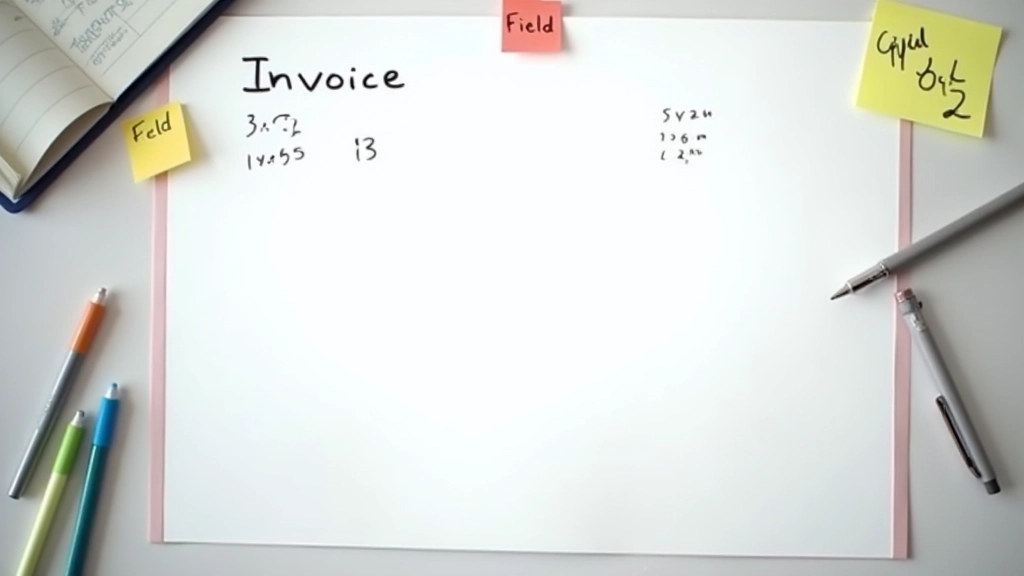
Next, you'll tell the system which fields to extract. Invoice amount. Vendor name. Invoice date. Line items. Account codes. The OCR tool has templates for standard invoices, but you'll customize it for your workflow. Most setups take 15-20 minutes because the interface is visual — you click on what you need.
Here's what makes this step practical: you're not teaching the system from scratch. It's already trained on thousands of invoices. Your job is just to say "I want this field" and "skip that one." It's more like configuration than programming.
Pro tip: Start with the basics — vendor name, amount, date. You can add custom fields later once you see how the system performs.
Before you run invoices through the system live, test it with 5-10 real samples. Send them through the workflow. Check the extracted data. Accuracy is usually 95%+ for standard invoices, but outliers happen — unusual formats, poor scans, handwritten notes. That's normal. You're looking for patterns, not perfection.
Use 5-10 invoices from different vendors
Check accuracy and catch any consistent errors
Fine-tune field extraction based on test results
Enable automatic processing for all incoming invoices
The extracted data needs to go somewhere useful. Most OCR tools integrate directly with QuickBooks, Xero, or other accounting software via API. You don't manually copy-paste anything. The vendor name, amount, and date flow straight into your system. Line items too, if you've configured that level of detail.
Some workflows export to CSV first for review before posting to your accounting system. That's actually smart if you're new to automation — you see what's happening before it gets recorded. After a few weeks, you'll probably trust the system enough to skip that step.

We've seen dozens of setups. Most work smoothly, but a few patterns come up. Low OCR accuracy usually means poor-quality scans — try adjusting the preprocessing settings. Missing fields happen when the system doesn't recognize your invoice layout — add a few more training samples. Slow processing? Check your folder size and connection speed.
Faded or scanned PDFs cause issues. Request cleaner copies from vendors or adjust preprocessing settings.
Unusual invoice formats confuse the system. Train it with a few samples of that vendor's invoices.
Large file sizes or poor connection speeds bottleneck the system. Compress images or increase processing tier.
API credentials expire or permissions change. Verify connection settings in your accounting software.
Setting up OCR isn't mysterious once you understand the workflow. Connect your source, configure what you want extracted, test with real data, and integrate with your accounting system. It's genuinely a one-hour process for most setups. The bigger win comes afterward — when you're not manually entering vendor names and amounts anymore. That's when you realize how much time this actually saves.
Start simple. Don't try to extract 20 fields on day one. Get the basics working — vendor, amount, date. Once that's solid, add complexity. You'll find a rhythm. Most firms we work with are processing invoices automatically within a week of setup.
This guide is educational and informational in nature. It describes general approaches to OCR integration and doesn't constitute technical support or consulting advice. OCR accuracy varies based on invoice quality, system configuration, and vendor-specific formats. We recommend testing thoroughly with your actual invoice samples before full deployment. Consult with your IT department or a qualified software consultant if you encounter integration challenges specific to your accounting system.
Understanding how OCR systems measure accuracy and why 95% recognition rates still require review processes.
Different suppliers use different invoice layouts. We break down the common formats and how OCR handles variation.

Local accounting firms share why they've adopted computer vision tools. Cost savings, efficiency gains, and workflow insights.